
1. Choose the products and keep a starting record
Start with a manageable group: a new collection, a recent import, or products your team is already updating. Write down which products you intend to review and who else may be editing them. Check that your app plan can scan the products and variants you need.
Export the relevant products from Shopify before a large cleanup, and keep an untouched copy. A product CSV records exported fields; it does not contain the image files themselves. Keep the Catalog Guardian scan report too, so you can compare the findings after your edits.
2. Review the fields behind each finding
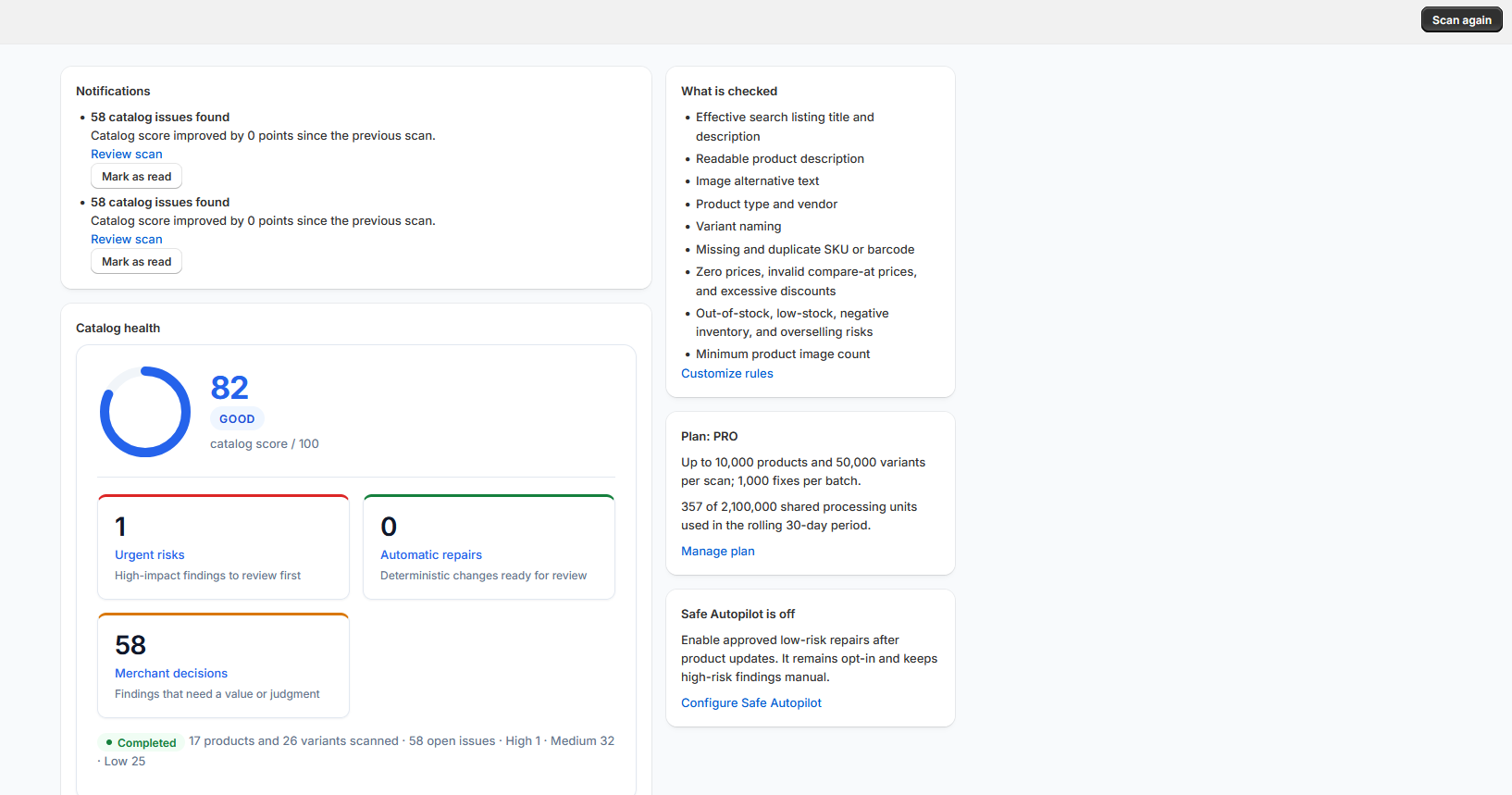
Run a catalog scan, then use the findings to locate the product or variant that needs attention. A rule can identify an empty or inconsistent field; a person still needs to decide whether the value is accurate for the item being sold.
For search titles and descriptions, review the text that actually represents the product. Blank custom SEO fields in a Shopify export can be expected when Shopify uses the product title and description as the fallback. Avoid filling a field only because the exported cell is empty.
| Field | What to check | Review decision |
|---|---|---|
| Title and description | Correct product name, useful details, and current facts | Correct missing or misleading information |
| Search title and description | Clear wording that matches the product page | Review the effective text, including fallback values |
| Images and alt text | Relevant product images and descriptions of the visible view | Add missing images or correct the description |
| SKUs and barcodes | Missing values, duplicates, and the correct variant association | Confirm identifiers with the system your team relies on |
| Vendor and product type | Values that fit your store's catalog rules | Confirm the intended classification before changing it |
Use these review questions alongside your configured scan rules. A completed field or a higher catalog score does not establish that every value is correct.
3. Prioritize the findings for your store
Review the scan's severity alongside the way your store operates. An identifier used by fulfillment may need attention before a cosmetic wording change. Missing images on an active product may matter more than incomplete content on a draft that is not ready for sale.
If price or inventory checks are enabled, confirm the commercial intent before changing anything. A zero price may be deliberate, and an out-of-stock item may be available for preorder. Assign an owner to findings that need a supplier, fulfillment, or merchandising decision.
4. Review a small batch before applying changes
Compare the current and proposed values for each available fix. Select only changes you can verify, and handle other findings in Shopify or the source system that owns the data. Finding an issue does not mean the app can supply the correct replacement.
Start with a small batch and read the item-level results. Resolve conflicts before continuing, especially if another operator is updating the same products. For eligible app changes, check the stored original values and rollback conditions before relying on recovery.
5. Verify the result and plan the next review
Inspect the affected fields in Shopify, view the relevant product pages, and run a fresh scan. Compare the new report with your starting record. Keep unresolved findings with their owner and the next action instead of treating a finished batch as a finished audit.
Repeat the review after imports, new product launches, or changes to your catalog rules. Scheduled scans are available on paid plans; the Free plan supports scans of up to 100 products and 500 variants and up to 10 reviewed fixes per batch.
Questions before you finish the audit
Does a blank custom SEO field always need fixing?
No. Shopify can use the product title and description when custom SEO fields are blank. Review that effective text first. If it already describes the product accurately, an empty export cell alone is not a reason to add a custom value. Review the effective search text.
Is the cleanup complete when the scan finishes?
A finished scan gives you findings to review. Someone still needs to decide which findings require changes and verify the results after those changes are applied. Keep unresolved items assigned to an owner, then compare a fresh scan with your starting report before closing the review. Check the results after your edits.