
Start with the variants behind the finding
A duplicate SKU finding tells you that an identifier needs a closer look. Check the product and variant options together, then compare them with the identifier used by your fulfillment process. The right replacement depends on how your store assigns SKUs.
Keep a record of which variant should keep the existing value. If another system relies on that SKU, coordinate the change there before applying it in Shopify. A new identifier should still make sense to the people who pack orders or manage stock.
| Variant | Current SKU | Review needed |
|---|---|---|
| Classic tee / Navy / Small | TEE-NAV | Confirm the intended identifier |
| Classic tee / Navy / Medium | TEE-NAV | Check whether a separate SKU is needed |
Illustrative data. These are example findings, not results from a merchant's store or automatic replacement suggestions.
A practical SKU review workflow
Use a small group of variants for your first review. This gives you a chance to check your naming rules before repeating the process across a larger catalog.
Run a catalog scan
Open Catalog Guardian in Shopify Admin and scan your catalog. Review the missing and duplicate SKU findings alongside the affected product data.
Confirm the correct identifier
Compare the variants with your SKU conventions and any systems that consume the value. Decide which existing identifier to keep and which variants need attention.
Review the change
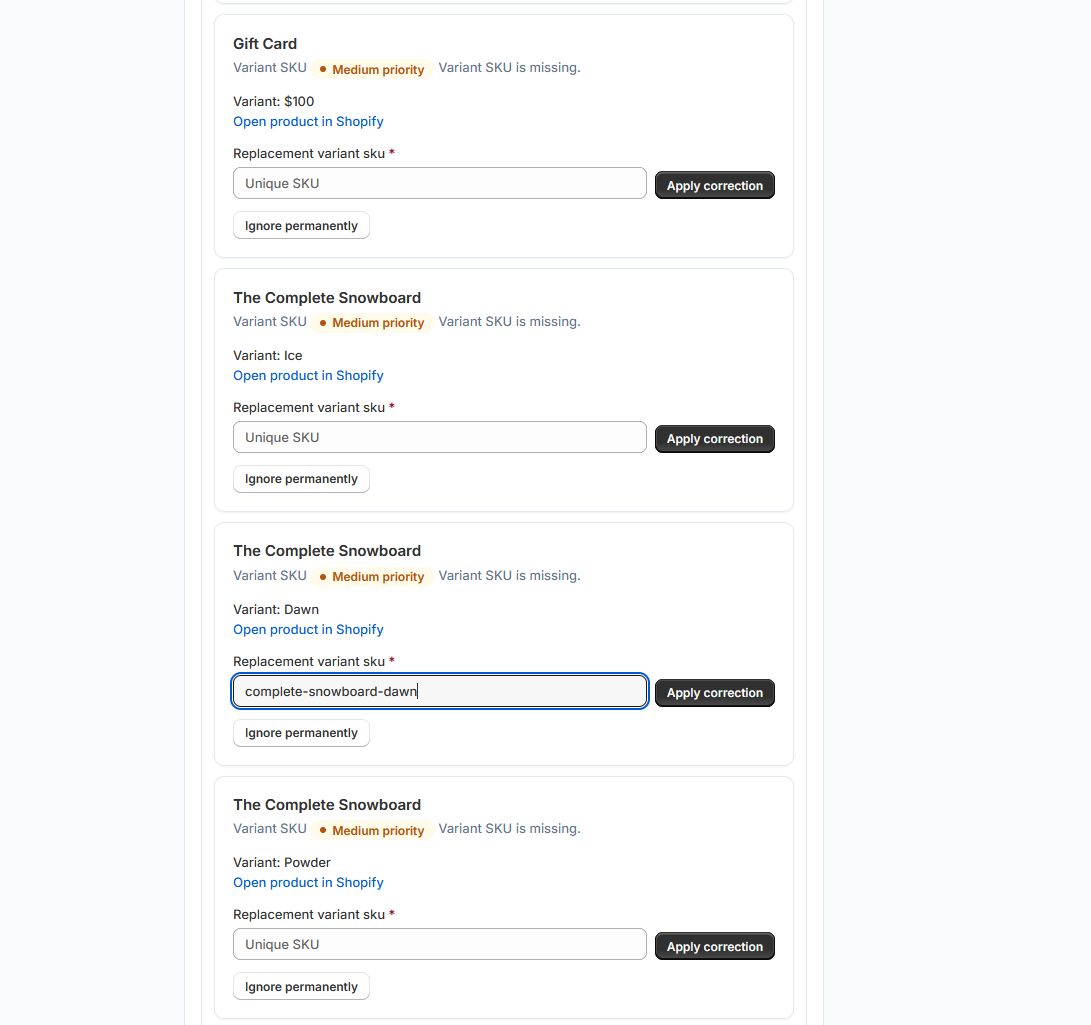
Where a proposed fix is available, inspect the current and proposed values before selecting it. Handle changes outside the available fix workflow in Shopify or your source system.
Scan again
After the changes are complete, run a fresh scan to check for remaining duplicates or missing values. Keep the report with your cleanup records.
Check and edit a SKU directly in Shopify
Shopify recommends a unique SKU for each variant. Check whether a duplicate warning reflects an intentional bundle or another specific workflow before replacing the shared value.
When another inventory or fulfillment app uses the SKU, compare its value with Shopify, including case and spacing. Confirm how the app handles a replacement before saving.
Open the affected product
In desktop Shopify Admin, open Products and select the product. You can also use the admin search bar to find it by its current SKU.
Choose the exact variant
In the Variants section, open the affected variant. Check its options against the finding so you change the intended size or color.
Edit the identifier
In the Inventory section, open the SKU field and enter the identifier you confirmed for that variant.
Save and check the result
Click Save, then confirm the stored value and any connected app's matching identifier. Run a fresh catalog scan to check for remaining duplicates.
What the checker does, and what you decide
Catalog Guardian checks SKU and barcode fields as part of a broader catalog audit. A finding does not establish which identifier your business should use. Review any proposed change against your store's rules; finding a duplicate does not mean every duplicate can be repaired automatically.
The Free plan scans up to 100 products and 500 variants, includes report exports, and allows up to 10 reviewed fixes per batch. Growth includes SKU and barcode tools, with higher limits on the larger plans. Compare the current plans before scheduling a larger cleanup.
Keep a recovery record for supported changes
For eligible changes made through Catalog Guardian, original values and per-item outcomes are kept in fix history. Check the rollback conditions before relying on recovery. Edits made in other tools do not become reversible just because you scanned them with Catalog Guardian.
If a finding is unclear, contact support with your Shopify store domain and the approximate scan time. Include the affected field and a short description of what you expected to see.
Questions before changing SKUs
Who decides which replacement SKU a variant should use?
The person responsible for your catalog should confirm the replacement using your store's SKU conventions and records. A duplicate finding identifies a shared value; it cannot establish the intended identifier for your business. Decide which variant should retain the original SKU before approving changes to the others.
What should I check if another system uses the SKU?
Check which system owns the identifier and which workflows reuse it. Confirm the intended change with whoever manages those systems before editing Shopify. Keep a record of the old and new values, then verify that fulfillment and inventory workflows still identify the intended variant. Keep a starting record before cleanup.