
Give each description a useful job
Describe the visible product details that help someone understand the image. A useful description might identify the color or a feature shown in that particular view. Keep the wording faithful to the image, and check facts against the product information.
Google uses alt text along with image analysis and the surrounding page content to understand an image. Missing alt text does not make an image invisible to search. Adding it helps provide context, but does not guarantee a ranking improvement or resolve every accessibility issue on a storefront.
| Image being reviewed | Current alt text | Possible description |
|---|---|---|
| Front view of a navy canvas bag | Empty | Navy canvas weekender bag with tan handles |
Illustrative wording, not an actual app-generated suggestion. Use this description only if those details are visible in the image.
Work through the missing alt text findings
Start with product images you can inspect closely. A description that names the wrong material or color needs correction even if it satisfies a rule that checks for a nonempty value.
Find the affected products
Run a catalog scan in Shopify Admin. Review the image and alt text findings to identify product content that needs attention.
Check the image itself
Look at the image and the existing description together. Decide which visible detail the text should convey, including differences between views when they matter.
Review proposed text
For available fixes, compare the current and proposed values before applying the change. Correct inaccurate wording and avoid inserting claims that the image cannot support.
Check the result
Run a fresh scan after your edits. Also review the relevant product page so the description makes sense in the context where a shopper encounters the image.
Add alt text in Shopify Admin
You can correct an individual product image in desktop Shopify Admin. Shopify recommends brief, descriptive alt text, usually 125 characters or less.
Open the product image
Go to Products and select the affected product. Click the image in the product's media area to open its preview.
Write the description
Choose Add alt text and enter wording that describes the image. Compare it with the visible product details before saving.
Save the alt text
Click Save alt text, then close the preview. If the image opens in the media editor, use the Alt text field under Edit information and click Save.
Verify the saved wording
Reopen the image to check its description. Review the product page and run a fresh catalog scan to confirm that the missing value has been filled.
Choose how changes reach your catalog
By default, Catalog Guardian shows proposed values for review before changes reach Shopify. Safe Autopilot is available on Pro and Scale and stays off until you enable it. It applies only eligible low-risk rules; availability does not mean every image description can be written or repaired automatically.
The Free plan scans up to 100 products and 500 variants and allows 10 reviewed fixes per batch. Report exports are included. Use the plan comparison to check the capacity for your store before starting a larger review.
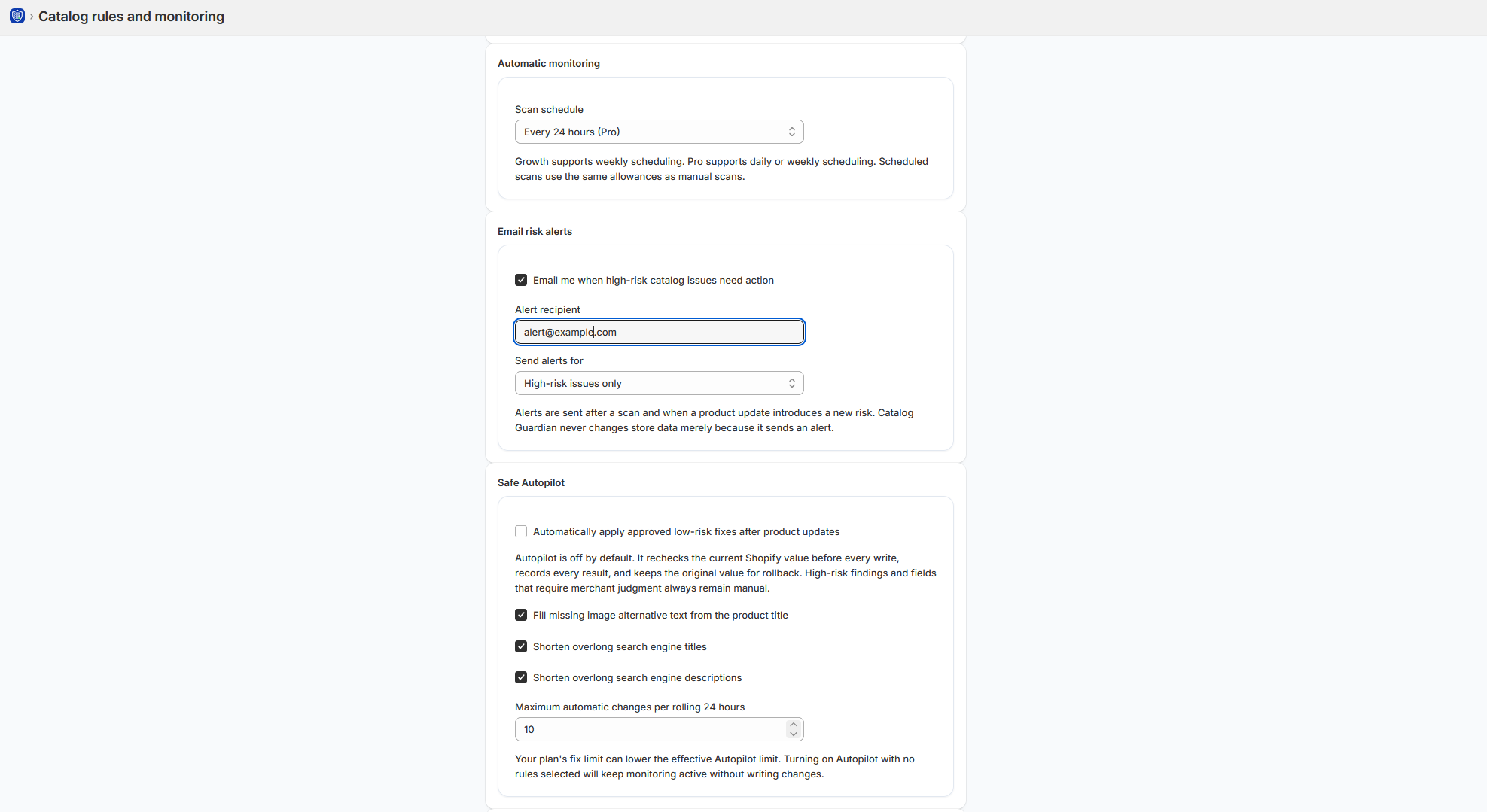
Review quality after you fill the gaps
A complete field can still contain an unhelpful description. As you review, look for repeated text that ignores differences between images, outdated product details, or a list of search terms that does not describe the view. Treat the scan as a starting point for checking the content.
For eligible app changes, check fix history and the rollback conditions before restoring an earlier value. If another operator has edited the field since the fix, review that change first so their work is not overwritten.
Questions before approving image descriptions
Is the product title enough for image alt text?
Only when the title accurately describes that image. A product title may be a useful starting point, but it can miss a close-up detail or the difference between views. Compare the proposed text with each image and adjust it where the visible information calls for a more specific description. See an image description example.
Why review the image after the missing alt text is filled?
The check for missing alt text identifies empty values. Once a field contains text, that check cannot tell you whether the description names the right color or describes the correct view. Look at the image before approving the wording, especially when several images have inherited the same product title.